Requirements
- The vehicle must be online
- A PRO 7 camera must be installed
- The Streaming feature must be enabled
- Extended implementation has FW version: 50.2 B164
How to Enable Streaming (SUPPORT ONLY)
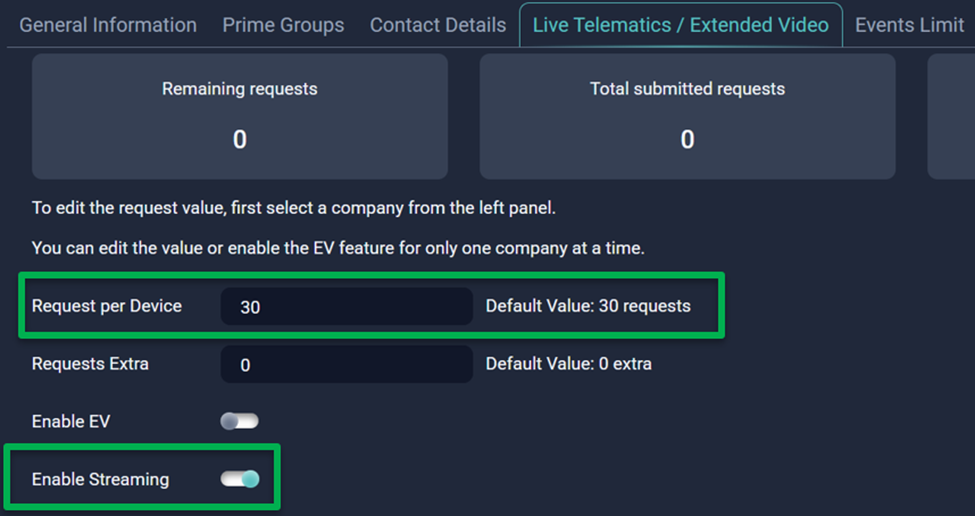
Streaming can be activated from the Companies section, under Live Telematics → Extended Video tab.
If Extended Video is enabled, make sure to update the Requests per Device field to 60 requests (instead of 30).
Feature includes extra 150 MB data.
Each Streaming request represents 30 seconds of video.
How to Start a Live Stream
Step 1 — Open the GPS Tracker page and select a vehicle
- The vehicle must be online and have a PRO 7 camera assigned
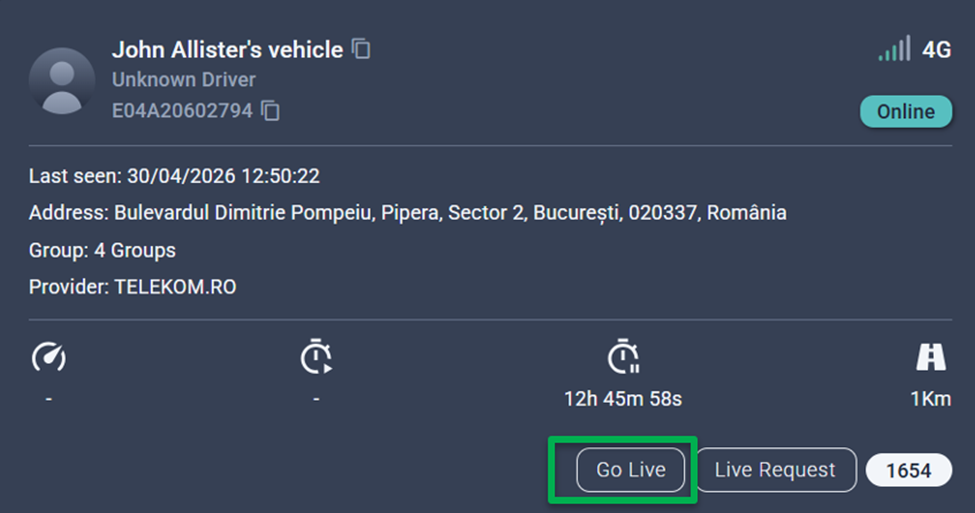
Step 2 — Click “Go Live”
- Once a valid vehicle is selected, the Go Live button will appear in the action bar
If the button is greyed out, the device is not an AI Pro camera
Step 3 — Use the streaming window
- Before starting, you can choose between inside or outside cameras using the settings icon in the player bar
- By default, the inside camera is selected. Your selection is preserved even when switching to another vehicle. The pop-up title indicates the active camera
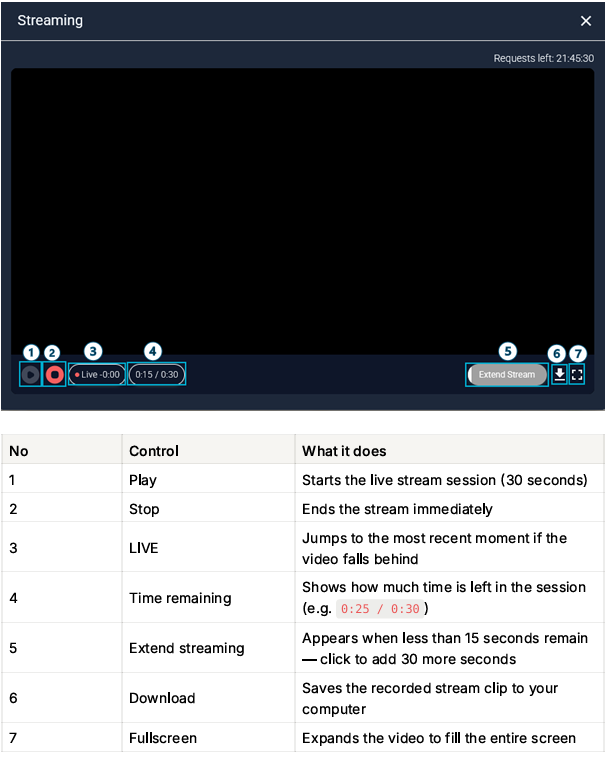
Click the Play button to start a 30-second live stream session.
Player Controls
Extending the Stream
When less than 15 seconds remain, the Extend button appears. Click it to add another 30 seconds to the session.

Downloading a Stream Clip
After the session, click the Download icon to save the recorded video to your computer.
Remaining Requests
The top of the streaming window shows how many streaming requests are still available for the current period.
The format is in hh:mm:ss

Good to Know
- Only one user can start a stream per vehicle, but others can join and watch
- Audio is not available at this time
- If the vehicle goes offline, the stream will end automatically
- Closing the streaming window does not stop the session unless you select Stop & Close
- When closing, you’ll be prompted to either continue streaming or end the session
Was this article helpful?
That’s Great!
Thank you for your feedback
Sorry! We couldn't be helpful
Thank you for your feedback
Feedback sent
We appreciate your effort and will try to fix the article