DVR Configuration and Provisioning SOP
1. Hardware Setup
1.1 Connect the LCD monitor to the red AV OUT cable of the DVR.
1.2 Insert the SIM card and the SSD into the DVR.
1.3 Record the SIM ICCID in the tracking Excel file.
1.4 Connect the black DVR power cable to the charger/power supply cable.
1.5 Connect each camera to the corresponding yellow AV IN cable on the DVR, such as AV IN1, AV IN2, and so on.
1.6 Connect the antenna cables to the three rear DVR connectors: 4G, Wi-Fi and GPS.
1.7 After all components are connected, turn on the Power switch, then the Ignition switch, and wait for the monitor to start.
2. DVR Menu Access
2.1 To access the DVR menu tabs, log in using the default credentials below.
2.2 Username: admin
2.3 Password: 123
3. Record the Device ID and SIM ICCID
3.1 Navigate to Settings -> System -> Info -> Device ID.
3.2 Record the DVR Device ID / serial number.
3.3 Document the DVR Device ID next to the ICCID of the SIM inserted in the DVR, in the Excel tracking file.
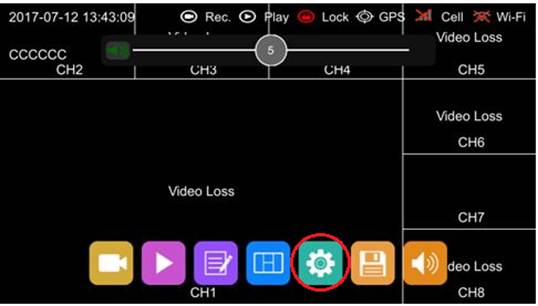
Image 1 - Accessing the DVR settings menu.
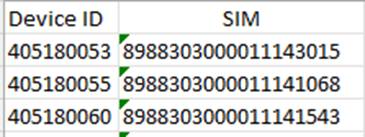
Image 2 - Example Excel tracking format: Device ID matched with SIM ICCID.
4. Format / Verify the SSD or SD Card
4.1 Access the storage icon located near the Settings icon.
4.2 Select Format for the SSD / SD card. If the SSD has already been formatted, verify that the storage is visible and ready.
4.3 Confirm that the DVR displays the message: Format Successful.
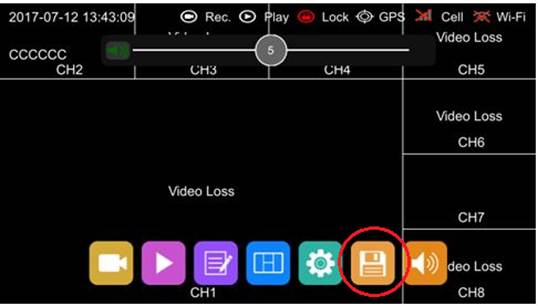
Image 3 - Storage / format icon location.
5. Firmware Update
5.1 Prepare a USB drive formatted as FAT32.
5.2 Copy the firmware file to the USB drive: dv456_upgrade_20240313 2.0118_id_rename.
5.3 The folder structure on the USB drive must be: \upgrade\packet\local\dv456_upgrade_20240313 2.0118_id_rename
5.4 Insert the USB drive into the DVR.
5.5 Navigate to Settings -> System -> Update -> Software.
5.6 Wait for the firmware update to complete.
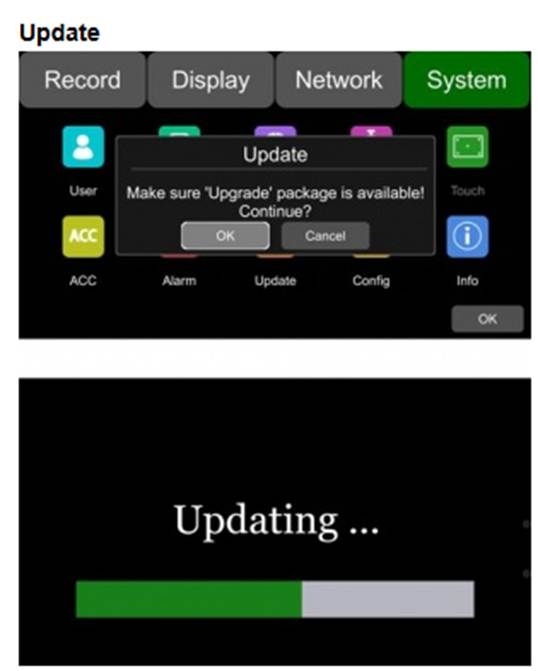
Image 4 - Firmware update prompt and update progress screen.
6. Complete Firmware Update
6.1 Wait until the DVR displays the message: Update Successful.
6.2 Remove the USB drive after the update has completed successfully.
7. Configuration Import
7.1 Prepare a second USB drive containing the predefined configuration file: sv_xml.xml.
7.2 The folder structure on the USB drive must be: \Export_file\config\sv_xml.xml
7.3 Insert the USB drive into the DVR.
7.4 Navigate to Settings -> System -> Config -> Import -> USB.
7.5 The DVR will restart automatically with the imported settings.
7.6 The configuration file contains provider-specific settings. At the time of the original procedure, an Emnify configuration file was available.
8. Login After Configuration Import
8.1 After the XML configuration file has been imported, use the updated credentials below.
8.2 Username: admin
8.3 Password: IDGD8
9. Verify Cellular, APN and Server Settings
9.1 After importing the settings, verify the Cellular and APN configuration.
9.2 Navigate to Settings -> Network -> Status.
9.3 Confirm that Cellular is ON and that the network status is successful.
9.4 Navigate to Settings -> Network -> Server.
9.5 Confirm the APN, server information and successful server registration.
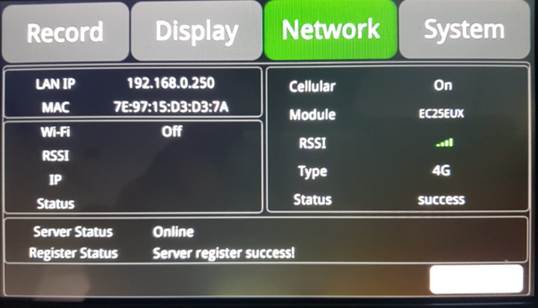
Image 5 - Network Status screen showing Cellular status and server registration.
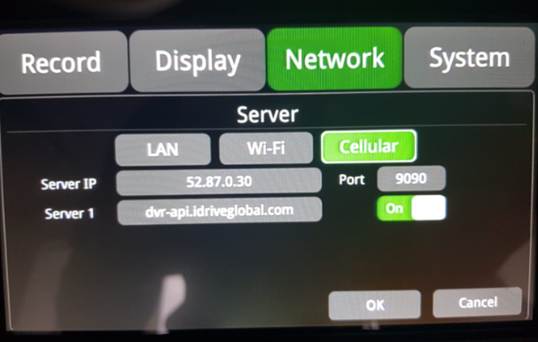
Image 6 - Network Server screen showing Cellular server settings.
10. Configure Date, Time and Time Zone
10.1 Navigate to Settings -> System -> Date & Time -> Format (Setup) -> Time Zone.
10.2 Adjust the time zone according to the customer deployment location.
10.3 Example from the original procedure: Canada / Ontario = UTC -5.
10.4 Adjust the hour if required.
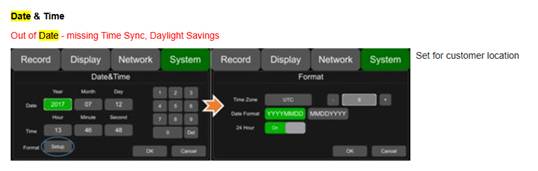
Image 7 - Date and Time configuration screen.
11. Print and Apply the DVR Label
11.1 Print a label containing the DVR serial number.
11.2 Add the SIM ICCID below the DVR serial number on the same label.
11.3 Apply the label to the DVR unit.
11.4 Note: The example image only shows the DVR serial number, but the ICCID must also be included underneath it.
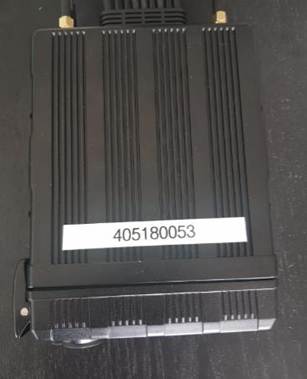
Image 8 - Example DVR label placement. ICCID must be added below the serial number.
12. Register the DVR in the Legacy Admin Center
12.1 Open the legacy/old Admin Center.
12.2 Navigate to Manufacturing -> D4-DVR-Production -> Add.
12.3 Enter the Device ID from the DVR as the Serial Number.
12.4 Select the correct item type, for example IDGSDVR4-1TB, as applicable.
12.5 Save the DVR record in the database.
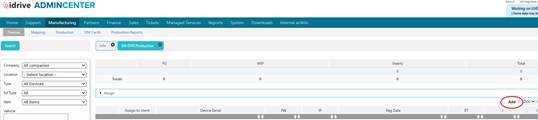
Image 9 - Admin Center manufacturing section.

Image 10 - Add DVR serial number and item type.
13. Assign the DVR in Nexus
13.1 After the DVR has been added to the database, open Nexus.
13.2 Assign the DVR device.
13.3 Allocate the DVR to the correct vehicle.
13.4 Confirm that the DVR is correctly assigned and ready for use.

Image 11 - Nexus DVR assignment screen.
Completion Checklist
☐ SIM and SSD inserted
☐ SIM ICCID recorded
☐ Device ID recorded and matched with ICCID
☐ SSD / SD card formatted or verified
☐ Firmware updated
☐ Configuration imported
☐ Post-import credentials confirmed
☐ Cellular / APN / server settings verified
☐ Time zone configured
☐ Label printed with serial number and ICCID
☐ DVR registered in Admin Center
☐ DVR assigned to the correct vehicle in Nexus
Was this article helpful?
That’s Great!
Thank you for your feedback
Sorry! We couldn't be helpful
Thank you for your feedback
Feedback sent
We appreciate your effort and will try to fix the article